Library
The Library holds the project’s shared test cases, organised in collections. Runs pick their test cases from here, so the Library should contain only tests that have been tried in the Sandbox and work reliably. Statuses let you retire tests without deleting their history.
Collections
Collections are folders for test cases and can be nested to any depth. + Collection creates a collection inside the selected one; to create one at the top level, select the root (the project name followed by (Root)) first. Move a collection by dragging it onto another one or with Move to….
Deleting a collection permanently deletes it and all test cases inside it.
Finding test cases
- Search matches test case titles only.
- With two or more tags selected, choose OR (any tag, the default) or AND (all tags).
- The gear menu has Show sub-collection tests (on by default) and Show decommissioned (off by default).
- Switching to another collection clears the search and creator filters but keeps the tag filter.
Test case fields
The fields and what reaches the agent are described in Writing test cases. Library test cases have no URL or device fields; the target and device are set on the run. A test case promoted from the Sandbox is the exception: it keeps its Sandbox device, which is not shown here and is cleared by editing the test case here. See Promote to Library.
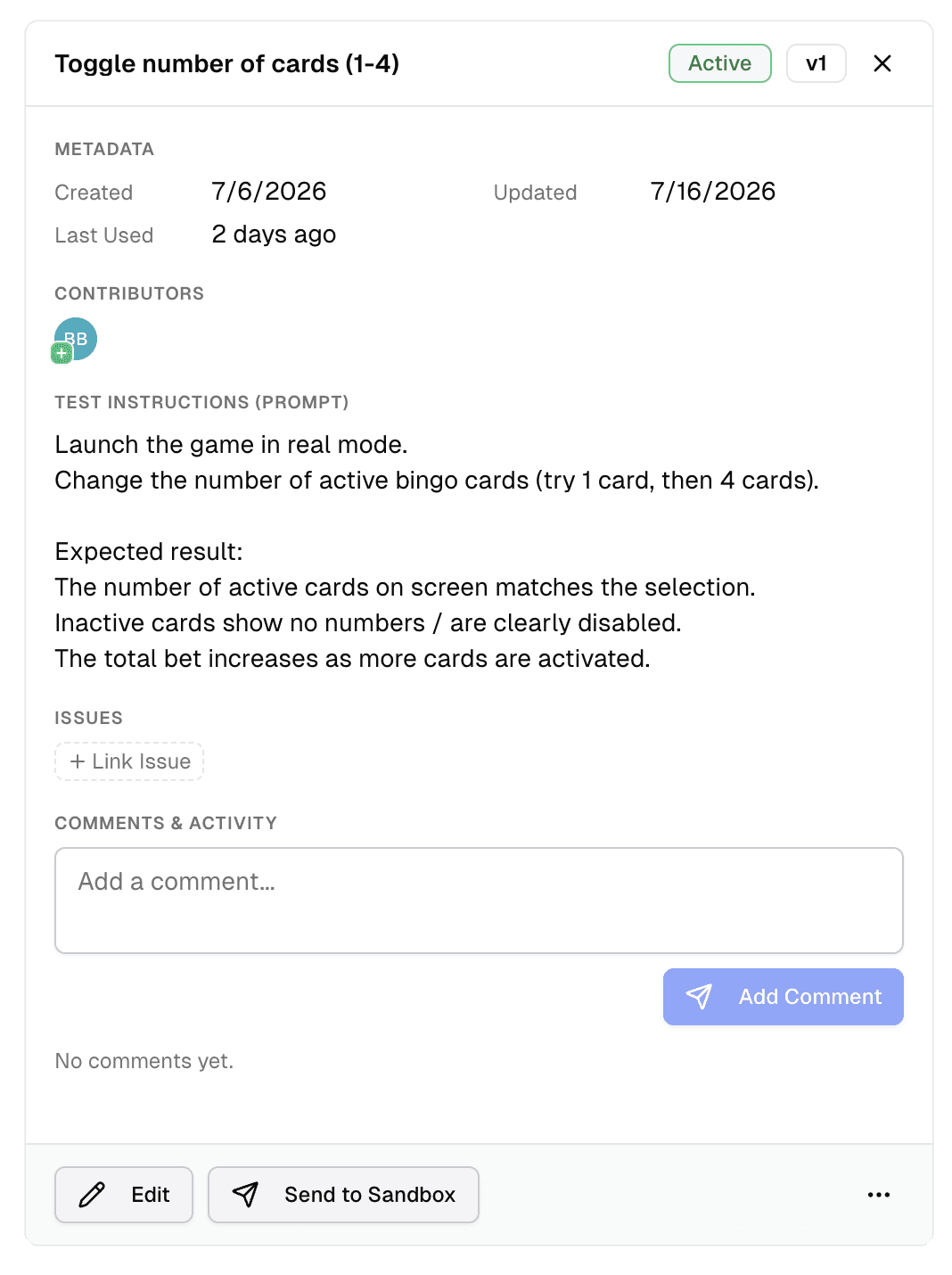
Every save creates a new version (v1, v2 and so on). Past executions always show the test case as it was when it ran; see Results.
Statuses
| Status | Description |
|---|---|
Draft | The status of every new test case. Still added to runs. |
Active | Marks the test case as ready for regular use. |
Deprecated | Marks the test case as outdated. No longer added to runs. |
Decommissioned | Hidden from the Library unless Show decommissioned is on, and excluded from new runs. |
Decommission is a separate menu item from Change Status. Reactivate brings a decommissioned test case back as Draft. To take a test case out of use while keeping its history, decommission it instead of deleting it: Delete is permanent.
Only Managers can change a test case’s status, including decommissioning and reactivating. Testers and Managers can create, edit, duplicate, move and delete test cases. See Roles.
Tags
Tags are shared by the whole project. Typing a new name in a tag field creates the tag. Rename, recolour or delete tags in Project settings.
Comments and activity
The Comments & Activity section combines comments (up to 4,000 characters; only the author can delete one) with an automatic history: Modified test case (including tag changes), Changed status and Promoted from sandbox. The info icon on an entry shows what changed.
Jira issues
The Issues section lists linked Jira issues. Issues created from a failed result with Report Issue are linked here automatically. See Jira integration.